
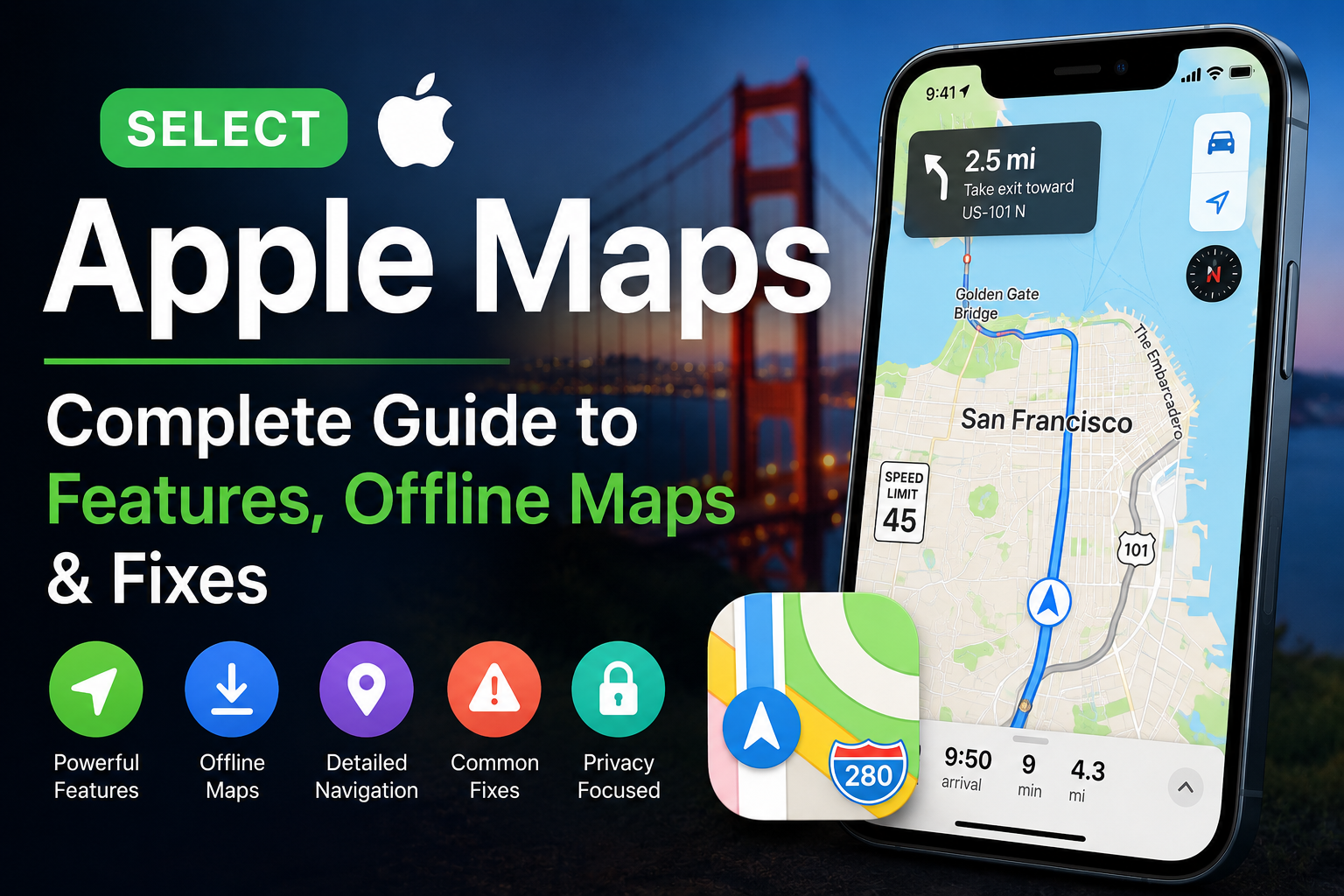

Apple Maps: Everything You Need to Know, Common Problems, and Smart Navigation Tips
Introduction
Whether you’re commuting to work, planning a weekend getaway, or navigating through an unfamiliar city, having a reliable navigation app has become essential. Among the leading navigation platforms available today, Apple Maps has evolved into one of the most powerful tools for iPhone, iPad, Mac, Apple Watch, and CarPlay users.
Since its initial launch, Apple Maps has undergone significant improvements. Today, it offers detailed maps, real-time traffic information, turn-by-turn navigation, lane guidance, speed camera alerts in supported regions, public transit directions, cycling routes, and a growing collection of useful travel features. Apple continues to expand the service while placing a strong emphasis on user privacy and seamless integration across its ecosystem.
Recently, however, many users searched online after experiencing temporary issues with directions and navigation services. At the same time, Apple introduced improvements to offline maps, making road trips and areas with limited cellular coverage much easier to navigate.
This guide explains everything you need to know about Apple Maps—from its major features and benefits to troubleshooting common problems and making the most of its newest capabilities.
What Is Apple Maps?
Apple Maps is Apple’s built-in digital mapping and navigation service designed for Apple devices. It helps users:
- Find destinations
- Navigate with voice guidance
- Discover businesses and attractions
- View traffic conditions
- Explore cities in detail
- Plan trips efficiently
- Save favorite locations
- Share estimated arrival times
Unlike many navigation services, Apple Maps is deeply integrated with iOS, iPadOS, macOS, watchOS, and CarPlay. This allows users to start navigation on one device and continue it seamlessly on another.
Because the application comes pre-installed on Apple devices, millions of users rely on it every day without needing to download additional software.
Why Apple Maps Has Become More Popular
When Apple Maps first launched, it faced criticism for map accuracy and missing data. Over the years, Apple invested heavily in rebuilding the platform.
Today, the service includes the following:
- Improved road coverage
- Better business listings
- High-quality satellite imagery
- More accurate routing
- Enhanced traffic predictions
- Rich city experiences
- Better pedestrian navigation
- Faster route calculations
Many users now consider Apple Maps a serious alternative to other navigation platforms, especially if they already use Apple products daily.
Major Features of Apple Maps
Turn-by-Turn Navigation
Apple Maps provides clear voice-guided directions for:
- Driving
- Walking
- Cycling
- Public transportation
The interface automatically updates as traffic conditions change, helping users reach destinations efficiently.
Real-Time Traffic Updates
Traffic conditions constantly change throughout the day.
Apple Maps analyses available traffic information and can suggest the following:
- Faster alternate routes
- Delays ahead
- Traffic congestion
- Road closures
- Construction zones (where available)
This helps drivers avoid unnecessary delays.
Lane Guidance
Navigating large intersections and complicated highway exits can be stressful.
Apple Maps provides lane guidance that tells drivers which lane they should remain in before approaching an exit or intersection.
This reduces confusion and helps drivers make safer decisions.
Speed Camera Alerts
In supported locations, Apple Maps can notify drivers about:
- Fixed speed cameras
- Red-light cameras
- Speed checks
These alerts encourage safer driving while helping users remain aware of local traffic enforcement.
Public Transportation
For commuters, Apple Maps supports transit navigation that includes:
- Bus routes
- Subway systems
- Train services
- Walking connections
Users can compare travel options before starting a journey.
Cycling Routes
Cyclists receive specialised directions that consider the following:
- Bike-friendly roads
- Elevation changes
- Dedicated bike lanes
- Stair warnings
- Busy intersections
This feature helps riders choose more comfortable and efficient routes.
Flyover Experience
Apple Maps offers an impressive Flyover mode for selected cities.
Instead of viewing a standard map, users can explore detailed 3D models of famous landmarks and urban areas, making it easier to understand unfamiliar locations.
Look Around
Look Around functions similarly to street-level imagery.
Users can preview streets, buildings, businesses, and intersections before arriving.
This is especially useful when visiting:
- Hotels
- Restaurants
- Shopping centers
- Tourist attractions
- Business offices
Favorites and Guides
Apple Maps lets users organise frequently visited locations.
Examples include:
- Home
- Office
- Gym
- School
- Family members
- Vacation spots
Guides also help users discover recommended restaurants, attractions, parks, and entertainment venues in supported cities.
One advantage of Apple Maps is its integration with Apple devices.
iPhone
The iPhone offers the complete Apple Maps experience with navigation, offline maps, business discovery, and Siri integration.
Apple Watch
Users can receive turn notifications directly on their wrist.
Instead of constantly checking the phone, subtle taps indicate when to turn.
Mac
Planning a trip is often easier on a larger display.
Users can search destinations on a Mac and send routes directly to an iPhone.
CarPlay
Apple Maps works seamlessly with Apple CarPlay.
Drivers benefit from:
- Large navigation display
- Voice commands
- Hands-free operation
- Easier route adjustments
- Integration with steering wheel controls in many vehicles
Why Some Users Recently Experienced Apple Maps Problems
Like any cloud-based service, Apple Maps occasionally experiences temporary interruptions.
Some users recently reported issues such as the following:
- Directions not loading
- Routes failing to calculate
- Navigation becoming temporarily unavailable
- Slow map loading
- Search delays
Most service interruptions are temporary and are resolved after Apple restores normal operations.
Temporary outages can occur because of:
- Server maintenance
- Infrastructure updates
- Network disruptions
- Regional service issues
- Unexpected technical faults
Fortunately, these events are generally short-lived.
Common Problems
Although Apple Maps is reliable for everyday navigation, users may occasionally encounter problems.
Some of the most common include the following:
Directions Not Working
Possible causes include:
- Internet connectivity issues
- Temporary server outages
- Location permission problems
- GPS signal interruptions
GPS Location Is Incorrect
Sometimes the blue location indicator may appear inaccurate.
Possible reasons include the following:
- Weak satellite signal
- Indoor environments
- Nearby tall buildings
- Temporary calibration issues
Moving outdoors often improves GPS accuracy.
Search Results Missing
Businesses or addresses may occasionally fail to appear because of:
- Poor internet connection
- Temporary indexing delays
- Regional database updates
Trying the search again after refreshing the app often resolves the issue.
Slow Performance
Performance may decrease if:
- The device has limited available storage
- Background apps consume resources
- Network speeds are slow
- The operating system requires updating
Restarting the device can frequently improve performance.
How to Check Whether Apple Maps Is Down
Before troubleshooting your own device, determine whether the issue affects everyone.
Signs of a possible service interruption include:
- Multiple users reporting similar problems
- Directions failing for every destination
- Search functions becoming unavailable
- Maps loading without navigation
- Widespread reports on technology forums and social media
If the issue is server-related, waiting for Apple to restore the service is often the only solution.
Basic Troubleshooting Steps
If Apple Maps isn’t working correctly, try these simple fixes before assuming there’s a larger issue.
1. Restart
Close the app completely and reopen it.
Temporary software glitches often disappear after restarting the application.
2. Check Your Internet Connection
Navigation requires a stable internet connection for many features.
Switch between:
- Wi-Fi
- Cellular data
to determine whether the problem is network-related.
3. Verify Location Services
Open Settings and ensure location services are enabled for Apple Maps.
Without location access, navigation cannot function correctly.
4. Restart Your Device
A simple restart refreshes background services and resolves many temporary software issues.
5. Update iOS
Software updates often include bug fixes, security improvements, and enhancements for built-in apps like Apple Maps.
Keeping your device updated helps maintain reliable performance.
Everything You Need to Know, Common Problems, and Smart Navigation Tips
Complete Troubleshooting Guide for Apple Maps
If Apple Maps isn’t performing as expected, you don’t always need to reinstall the app or assume your device has a serious issue. Most navigation problems can be fixed with a few simple troubleshooting steps. The following guide covers the most common issues and practical solutions.
Check Apple’s System Status
Before changing any settings on your device, verify whether Apple Maps is experiencing a temporary service disruption.
Cloud-based services occasionally undergo maintenance or experience unexpected outages. If Apple Maps servers are unavailable, troubleshooting your device won’t resolve the issue until the service is restored.
Signs of a system-wide issue include:
- Multiple users reporting similar problems
- Navigation failing across different devices
- Search results not loading
- Directions unavailable for every destination
If everything else on your phone works normally but Apple Maps does not, waiting for the service to recover may be the best option.
Ensure You Have a Stable Internet Connection
Although Apple Maps now supports offline maps in selected situations, many features still require an active internet connection.
Check whether:
- Wi-Fi is connected
- Cellular data is enabled
- Aeroplane mode is turned off
- Your mobile network has sufficient signal strength
Switching between Wi-Fi and mobile data can quickly determine whether the problem is related to your connection.
Verify Location Services
Accurate navigation depends on location permissions.
To ensure Apple Maps can access your location:
- Open Settings
- Select Privacy & Security
- Tap Location Services
- Confirm Location Services are enabled
- Make sure Apple Maps has permission to access your location while using the app.
Without proper permissions, navigation accuracy may decrease significantly.
Enable Precise Location
Modern iPhones allow users to disable precise location for individual apps.
If Precise Location is turned off:
- Navigation may become less accurate.
- Directions may begin from an incorrect position.
- Route calculations may be affected.
Turning Precise Location back on usually improves navigation immediately.
Restart Your Device
Restarting your iPhone refreshes background processes and clears temporary software glitches.
Although this solution seems simple, it often fixes the following:
- Slow map loading
- Frozen navigation
- GPS issues
- Route calculation errors
Update iOS regularly.
Apple continuously improves Maps through iOS updates.
Installing the latest software provides the following:
- Bug fixes
- Performance improvements
- Better GPS accuracy
- Security updates
- Compatibility enhancements
Keeping your device updated helps ensure Apple Maps performs at its best.
Reset Network Settings
If navigation problems appear to be network-related, resetting network settings may help.
This option removes the saved
- Wi-Fi passwords
- Bluetooth connections
- VPN settings
- Cellular network preferences
After resetting, reconnect to your Wi-Fi network and test Apple Maps again.
Clear Background Applications
Running dozens of applications simultaneously can reduce available memory.
Closing unused apps may improve:
- Map loading speed
- GPS responsiveness
- Overall navigation performance
How Offline Maps Work
One of the biggest improvements to Apple Maps is the introduction of offline maps.
This feature allows users to download map data before travelling, making navigation possible even when internet access is unavailable.
Offline maps are especially useful for:
- Road trips
- National parks
- Mountain regions
- Rural communities
- International travel
- Areas with poor cellular coverage
Instead of relying entirely on a mobile network, your device stores selected map regions locally.
Benefits of Offline Maps
Offline maps provide several practical advantages.
Continue Navigation Without Cellular Service
Even when your phone loses signal, downloaded maps remain available.
This is valuable when travelling through the following:
- Remote highways
- Forests
- Desert areas
- Mountain passes
Reduce Mobile Data Usage
Downloading maps over Wi-Fi before your trip helps reduce mobile data consumption.
This is particularly useful for travellers with limited data plans.
Faster Map Loading
Since downloaded maps are stored on your device, they often load faster than maps retrieved over slower internet connections.
Better Travel Confidence
Knowing your maps remain available—even without service—can reduce travel stress and improve confidence during long drives.
How to Download Offline Maps
Downloading maps is straightforward.
General steps include:
- Open Apple Maps.
- Search for your destination.
- Select the area you want to save.
- Choose the download option.
- Wait until the download completes over Wi-Fi.
Once stored, the downloaded region remains available even without an internet connection.
Managing Offline Maps
Downloaded maps should be reviewed periodically.
Users can:
- Delete unused maps
- Update outdated map data
- Download larger travel regions
- Free storage space when necessary
Keeping offline maps updated ensures roads, businesses, and navigation information remain as accurate as possible.
Apple Maps vs. Google Maps
Both Apple Maps and Google Maps are excellent navigation platforms, but they appeal to different users.
| Feature | Apple Maps | Google Maps |
|---|---|---|
| Built into iPhone | Yes | No |
| Privacy Focus | Excellent | Good |
| Apple Ecosystem Integration | Excellent | Limited |
| CarPlay Support | Excellent | Good |
| Business Information | Very Good | Excellent |
| Offline Maps | Available | Available |
| Public Transit | Strong | Strong |
| Navigation Accuracy | Excellent | Excellent |
| Interface Simplicity | Excellent | Good |
| Personalized Recommendations | Moderate | Extensive |
Neither platform is universally better. The right choice depends on your priorities, preferred devices, and daily navigation habits.
Privacy Advantages
Privacy has become increasingly important for smartphone users.
Apple emphasises minimising personal data collection while still providing useful navigation features.
Some privacy-focused practices include:
- Limited data association with Apple ID
- Randomized identifiers for certain requests
- Encrypted communications where applicable
- Reduced long-term location profiling compared with many online services
For users who prioritise privacy, these practices can be an important advantage.
Useful Features Many Users Overlook
Apple Maps includes several helpful tools that many people rarely use.
Share ETA
Users can automatically share their estimated arrival time with family or friends.
If traffic conditions change, the ETA updates automatically.
Siri Integration
Instead of typing while driving, users can ask Siri to do the following:
- Start navigation
- Find nearby restaurants
- Locate gas stations
- Search hotels
- Find coffee shops
Hands-free navigation improves both convenience and safety.
Save Favorite Places
Frequently visited locations can be saved for one-tap access.
Popular favourites include the following:
- Home
- Workplace
- Parents’ house
- Gym
- Grocery store
This eliminates repetitive searching.
Explore Nearby
Apple Maps can help users discover the following:
- Restaurants
- Coffee shops
- Hospitals
- Pharmacies
- Hotels
- Parks
- Shopping centers
This feature is particularly useful when visiting unfamiliar cities.
Tips for Better Navigation
Following a few best practices can improve your Apple Maps experience.
Download maps before long trips.
This ensures navigation remains available even without internet access.
Keep battery levels sufficient.
GPS navigation consumes significant battery power.
Consider carrying:
- A car charger
- A power bank
- A charging cable
Mount your phone safely.
A dashboard mount improves visibility while keeping both hands on the steering wheel.
Start navigation before driving.
Entering destinations while the vehicle is moving can be distracting and unsafe.
Road Trip Planning with Apple Maps
Apple Maps has become a valuable companion for road trips.
Before leaving:
- Download offline maps.
- Save hotels and attractions.
- Check traffic conditions.
- Review fuel stops.
- Plan rest breaks.
- Share your ETA with family.
Preparing in advance reduces unexpected surprises during long drives.
Common Mistakes to Avoid
Many navigation issues are caused by simple oversights.
Avoid these common mistakes:
- Ignoring software updates
- Forgetting to enable location services
- Driving without downloaded maps in remote areas
- Beginning trips with low battery
- Relying on weak cellular coverage
- Disabling GPS permissions accidentally
A few minutes of preparation can prevent hours of frustration.
Everything You Need to Know, Common Problems, and Smart Navigation Tips
Apple Maps and Apple CarPlay
For many drivers, Apple Maps becomes even more useful when paired with Apple CarPlay. Instead of relying on a small phone screen, CarPlay displays navigation on your vehicle’s infotainment system, making directions easier to follow while helping reduce distractions.
CarPlay offers several advantages, including:
- A larger navigation display
- Voice-guided directions
- Hands-free Siri controls
- Automatic route updates
- Real-time traffic information
- Easy access to saved destinations
Because everything is integrated into the Apple ecosystem, users can start navigation on their iPhone and continue seamlessly once connected to CarPlay.
Using Siri for Hands-Free Navigation
One of the biggest advantages of Apple Maps is its deep integration with Siri.
Instead of manually entering destinations, you can simply say:
- “Take me home.”
- “Find the nearest gas station.”
- “Navigate to the closest coffee shop.”
- “Find an EV charging station.”
- “Show nearby parking.”
Voice commands help drivers stay focused on the road while making navigation more convenient.
Hidden Features Worth Exploring
Many users rely only on basic navigation, but Apple Maps includes several features that often go unnoticed.
Save Favorite Locations
If you frequently travel to the same destinations, save them as favourites.
Common examples include:
- Home
- Office
- School
- Gym
- Grocery store
- Family members’ homes
This saves time and allows you to begin navigation with just a tap.
Share Your ETA
Apple Maps allows you to share your estimated arrival time with selected contacts.
As traffic conditions change, your arrival estimate updates automatically, making it easier for friends, family, or coworkers to know when to expect you.
Report Road Incidents
In supported regions, users can report:
- Traffic accidents
- Road hazards
- Speed checks
- Lane closures
These reports help improve navigation information for everyone using the platform.
Explore Nearby Businesses
Whether you’re travelling or visiting a new neighbourhood, it makes it easy to discover nearby places such as the following:
- Restaurants
- Hotels
- Shopping centers
- Hospitals
- Pharmacies
- Parks
- Gas stations
- Coffee shops
Business listings often include ratings, operating hours, contact details, and directions.
Apple Maps for Everyday Life
Apple Maps is useful for much more than driving.
Many people use it to:
- Plan morning commutes
- Navigate public transportation
- Locate nearby services
- Discover tourist attractions
- Explore hiking destinations
- Organize travel itineraries
- Estimate travel times before meetings
Its integration across Apple devices means your navigation experience stays consistent whether you’re using an iPhone, iPad, Mac, Apple Watch, or CarPlay.
Best Practices for a Better Navigation Experience
Following a few simple habits can improve both safety and reliability.
Keep Your Device Updated
Software updates often include improvements to navigation, GPS accuracy, and overall performance.
Download Offline Maps Before Traveling
If you’re heading to a remote area or planning a road trip, downloading maps in advance can prevent navigation issues when internet access is limited.
Maintain Battery Power
Navigation apps consume battery quickly, especially during long trips.
Consider carrying:
- A vehicle charger
- A power bank
- A USB charging cable
Enable Location Services
Ensure Apple Maps has permission to access your location and that Precise Location is enabled for the best navigation accuracy.
Review Routes Before Departure
Take a moment to preview your route before you begin driving. Knowing major turns, exits, or alternative routes can help reduce stress during the trip.
The Future of Apple Maps
Apple continues to invest in improving its mapping platform.
Future enhancements may include:
- Expanded 3D city coverage
- More detailed road information
- Better public transit support
- Additional cycling routes
- Improved electric vehicle navigation
- More regions supporting offline maps
- Enhanced business information
- Smarter route recommendations powered by on-device intelligence
As Apple expands its mapping data worldwide, users can expect an increasingly accurate and feature-rich navigation experience.
Frequently Asked Questions
Is Apple Maps free to use?
Yes. Apple Maps is included at no additional cost on compatible Apple devices.
Does Apple Maps work without the internet?
Yes, if you’ve downloaded offline maps for the area you’ll be visiting. Some live features, such as traffic updates, still require an internet connection.
Is Apple Maps accurate?
Apple Maps has improved significantly over the years and provides reliable navigation for millions of users. Accuracy may vary slightly depending on the region.
Can Apple Maps avoid traffic?
Yes. It can suggest alternate routes based on available traffic information in supported areas.
Does Apple Maps support walking directions?
Yes. It offers navigation for walking, driving, cycling, and public transportation where available.
Can I use Apple Maps with CarPlay?
Yes, it is fully integrated with Apple CarPlay and supports voice navigation through Siri.
Does Apple Maps show speed cameras?
In supported regions, can display speed camera and red-light camera alerts.
Can I save favourite places?
Yes. You can save locations such as your home, workplace, or frequently visited destinations for quicker access.
Is Apple Maps available on Android?
No. Apple Maps is designed primarily for Apple’s ecosystem and is not available as a native Android application.
Why is Apple Maps not loading?
Possible causes include poor internet connectivity, disabled location services, outdated software, or temporary service interruptions.
Does Apple Maps update traffic in real time?
Yes, where supported. Traffic conditions are updated regularly to help users choose efficient routes.
Is Apple Maps good for road trips?
Yes. Features like offline maps, route planning, and CarPlay integration make it a strong option for long-distance travel.
Can Apple Maps help find nearby businesses?
Yes. You can search for restaurants, hotels, fuel stations, hospitals, and many other points of interest.
Does Apple Maps work on the Apple Watch?
Yes. It provides turn-by-turn navigation and subtle haptic alerts directly on your wrist.
Is Apple Maps private?
Apple emphasises user privacy by limiting the amount of personal information associated with navigation requests and using privacy-focused design principles.
Final Thoughts
Apple Maps has grown into a reliable navigation platform that serves millions of users every day. From daily commutes to cross-country road trips, it offers a wide range of features designed to simplify travel while integrating seamlessly across Apple’s ecosystem.
Recent service interruptions reminded users that even mature cloud-based platforms can occasionally experience temporary issues. Fortunately, most disruptions are short-lived, and practical troubleshooting steps can often resolve device-specific problems quickly.
With the addition of offline maps, continued improvements to navigation accuracy, enhanced privacy protections, and deeper CarPlay integration, it continues to evolve into a dependable companion for drivers, cyclists, pedestrians, and travellers alike.
Whether you’re planning your next vacation, exploring a new city, or simply finding the fastest route home, it provides an intuitive and increasingly powerful navigation experience.