
AOL Mail Down? Here’s What Happened, Why It Happens, and How to Get Back Into Your Inbox
If you’ve recently tried to sign in to AOL Mail only to see an unexpected error, you’re certainly not alone. Thousands of users occasionally experience problems accessing their email accounts, whether it’s due to a temporary server issue, browser conflicts, login problems, or maintenance on AOL’s side. When email suddenly becomes unavailable, it can interrupt work, delay important communications, and leave users wondering whether the problem is on their device or with AOL itself.
Fortunately, most AOL Mail outages are temporary. In many cases, the service returns to normal without users needing to take any action. However, understanding what causes these interruptions and knowing how to respond can save time and reduce frustration.
This guide explains everything you need to know about recent AOL Mail availability issues, why they occur, how to identify whether AOL is experiencing an outage, and the first troubleshooting steps you should take before assuming your account has a serious problem.
Why Are People Searching for “Is AOL Down?”
Email remains one of the most important communication tools for millions of Americans. Although newer platforms have gained popularity over the years, AOL Mail continues to serve a large user base that relies on it for personal communication, business correspondence, online accounts, and archived messages.
Whenever users suddenly cannot:
- Sign in
- Load their inbox
- Send messages
- Receive new emails
- Reset their passwords
- Access attachments
They often search online to determine whether the issue is widespread.
Instead of immediately assuming their password has been compromised or their account has been deleted, many people first check whether AOL itself is experiencing technical difficulties.
This search behaviour increases significantly whenever multiple users encounter similar issues simultaneously.
What Happens During an AOL Mail Outage?
An outage doesn’t always mean the entire platform has stopped working. Different users may experience different problems depending on the cause of the disruption.
Some people can log in successfully but cannot open individual emails. Others may receive temporary server errors, while some cannot access the website at all.
Common outage symptoms include:
- Inbox failing to load
- Blank email pages
- Endless loading screens
- Login loops
- Password rejection despite correct credentials
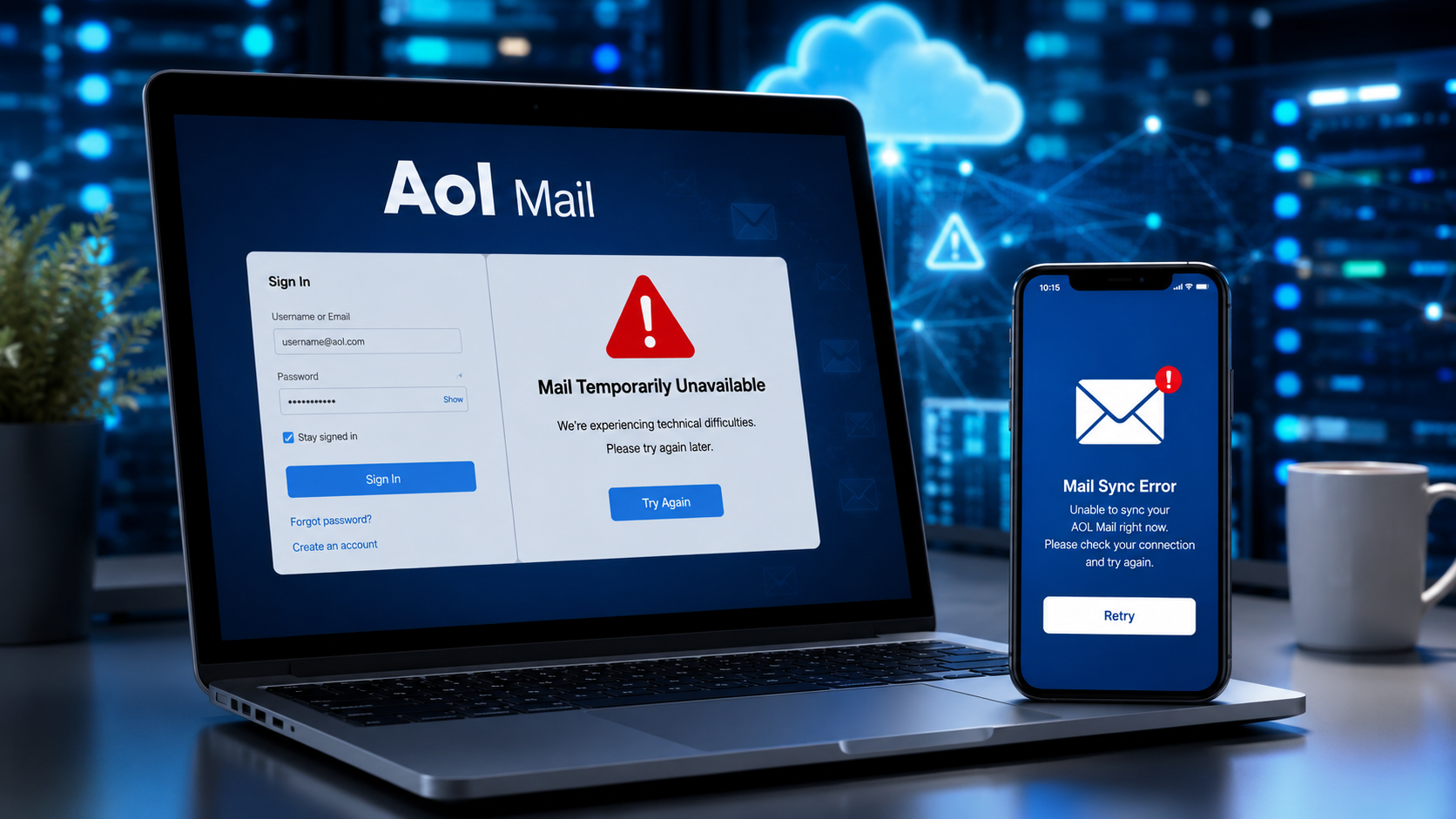
- Mail temporarily unavailable notifications
- Server timeout errors
- Missing folders
- Delayed incoming emails
- Emails remaining stuck in the Outbox
Because these symptoms vary, many users initially believe the issue is unique to their device when it is actually affecting thousands of accounts simultaneously.
Understanding How AOL Mail Works
To better understand outages, it helps to know how AOL Mail operates behind the scenes.
Every time you access your inbox, several systems work together:
| Component | Purpose |
|---|---|
| Authentication Servers | Verify your username and password |
| Mail Servers | Store emails and process incoming messages |
| Web Servers | Display the AOL Mail interface |
| DNS Services | Direct your browser to AOL servers |
| Spam Filters | Scan messages before delivery |
| Storage Systems | Save attachments and archived emails |
If just one of these systems experiences problems, users may notice service interruptions even though the rest of AOL’s infrastructure continues functioning normally.
This explains why one user may still receive emails through a mobile app while another cannot even load the login page.
Common Reasons AOL Mail Stops Working
Many different technical issues can interrupt access to AOL Mail. Some occur on AOL’s servers, while others originate from the user’s own device or internet connection.
Let’s look at the most common causes.
1. Temporary Server Problems
The most common reason for a widespread outage is server instability.
Like every major online service, AOL operates numerous servers that handle authentication, email delivery, storage, and website traffic.
When one or more servers become overloaded or encounter unexpected failures, users may temporarily lose access.
Fortunately, server-related outages are usually resolved quickly by technical teams.
2. Scheduled Maintenance
Technology companies regularly perform maintenance to improve performance, enhance security, and install software updates.
During maintenance windows, certain services may become temporarily unavailable.
Although providers often schedule maintenance during lower-traffic hours, some users may still experience interruptions depending on their location and usage time.
3. Internet Connectivity Issues
Not every login failure is caused by AOL itself.
A slow or unstable internet connection can interrupt communication between your device and AOL’s servers.
Signs of a connectivity issue include:
- Websites loading slowly
- Multiple websites failing
- Streaming interruptions
- Frequent Wi-Fi disconnects
- Browser timeout messages
Restarting your modem or switching to another network can often resolve these local problems.
4. Browser Problems
Modern web browsers store temporary files known as ‘cache’ and ‘cookies’.
While these files help websites load faster, outdated or corrupted data can occasionally interfere with login sessions.
Browser-related issues may include:
- Login pages repeatedly refreshing
- Incorrect password errors
- Broken page layouts
- Missing buttons
- Continuous loading circles
Clearing browser cache often resolves these problems.
5. Mobile App Issues
Many users access AOL Mail through smartphones or tablets.
Mobile applications occasionally encounter the following:
- Sync failures
- Expired login sessions
- Outdated app versions
- Notification problems
- Background refresh limitations
Updating the app or re-adding the email account frequently restores normal functionality.
6. Security Verification Delays
AOL monitors suspicious login activity to protect user accounts.
If the system detects unusual behaviour—such as a login attempt from a new location, unfamiliar device, or unexpected IP address—it may temporarily block access until the user’s identity is confirmed.
While this extra verification helps prevent unauthorised access, it can sometimes delay legitimate logins.
7. Third-Party Email Client Problems
Some users access AOL Mail through applications like desktop email clients or mobile email apps instead of using the official website.
These applications depend on:
- IMAP settings
- SMTP servers
- POP configurations
- Authentication protocols
If these settings become outdated or authentication tokens expire, email synchronisation may stop even though AOL’s website continues to function correctly.
Signs the Problem Is on AOL’s Side
One of the biggest questions users ask during an email interruption is whether the issue is affecting everyone or just them.
Several indicators suggest the problem may be a broader AOL service issue rather than a problem with your own account.
Many Users Report Similar Problems
If social media platforms and outage tracking websites suddenly show a spike in reports, the issue is likely widespread.
Large numbers of simultaneous complaints often point to server-side problems.
Multiple Devices Experience the Same Issue
Try accessing AOL Mail from:
- Your phone
- Your computer
- Another browser
- A tablet
- Another internet connection
If every device shows the same error, the issue may not be local.
The Error Appears Suddenly
If AOL Mail was working normally just minutes earlier and then unexpectedly stopped across multiple devices, this often suggests a temporary service disruption rather than an account issue.
Friends or Family Experience the Same Problem
If people in different locations report identical login failures or unavailable inboxes, it’s another indication that AOL may be experiencing technical difficulties.
Common AOL Mail Error Messages
Depending on the underlying issue, users may encounter different messages while trying to access their accounts.
Some frequently reported examples include:
- Mail is temporarily unavailable
- Unable to load mailbox
- Server unavailable
- Temporary authentication failure
- Something went wrong
- Connection timed out
- Internal server error
- Login session expired
- Unable to complete your request
- Please try again later
Although these messages can look alarming, they often indicate temporary technical issues rather than permanent account problems.
Does an AOL Outage Mean Your Emails Are Lost?
One of the biggest concerns during an outage is the possibility of losing important emails.
Fortunately, temporary service disruptions rarely affect stored messages.
Your emails are typically kept on AOL’s servers even if you cannot access them temporarily.
Once normal service resumes, users generally regain access to the following:
- Inbox messages
- Sent emails
- Drafts
- Contacts
- Attachments
- Custom folders
- Archived mail
However, emails that were in the process of being sent during an outage may remain pending until service is fully restored.
First Steps to Take Before Assuming There’s a Major Problem
Before resetting your password or contacting support, perform a few simple checks. These quick actions can help determine whether the issue is temporary or specific to your device.
Check Your Internet Connection
Open a few unrelated websites to verify that your internet connection is working properly. If other sites also fail to load, the issue may be with your network rather than AOL.
Refresh the browser.
Sometimes a simple page refresh is enough to re-establish a connection after a brief interruption.
Try a Different Browser
Switching from one browser to another can help identify whether cached data, extensions, or browser-specific settings are causing the issue.
Restart Your Device
A quick restart can resolve temporary software glitches, refresh network connections, and clear minor system errors.
Wait a Few Minutes
If the problem is caused by a temporary server issue, access may return without requiring any action on your part. Waiting briefly before making changes can save unnecessary troubleshooting.
Step-by-Step Solutions to Fix AOL Mail Problems
If AOL Mail isn’t working properly, don’t panic. In many cases, the issue can be resolved with a few straightforward troubleshooting steps. Whether you’re unable to log in, your inbox won’t load, or emails aren’t sending, working through the following solutions can help identify the cause and restore access.
Start with the simplest fixes before moving on to more advanced troubleshooting.
Solution 1: Verify Whether AOL Is Experiencing an Outage
Before changing passwords or adjusting settings, determine whether the problem is affecting many users.
Signs of a widespread outage include:
- Numerous reports from other users
- Sudden login failures across multiple devices
- Temporary error messages appearing repeatedly
- Social media discussions about AOL Mail issues
- Outage tracking websites showing increased reports
If a large-scale outage is occurring, the best solution is often to wait while AOL’s technical teams restore service.
Solution 2: Refresh Your Browser Session
Sometimes your browser simply loses its connection with the server.
Try these quick actions:
- Refresh the page.
- Close the browser completely.
- Open it again.
- Visit AOL Mail.
- Attempt to sign in once more.
A fresh browser session often resolves temporary loading issues.
Solution 3: Clear Cache and Cookies
Browsers store temporary files to improve loading speed. However, corrupted cache files can interfere with login sessions and page functionality.
Clearing your browser’s cache can resolve issues such as:
- Endless loading screens
- Blank inbox pages
- Login loops
- Display glitches
- Missing buttons
After clearing your cache:
- Restart the browser.
- Return to AOL Mail.
- Sign in again.
Solution 4: Disable Browser Extensions
Some browser extensions can interfere with websites.
Extensions that commonly cause issues include:
- Ad blockers
- Privacy tools
- Script blockers
- Security extensions
- VPN browser add-ons
Temporarily disable these extensions and test AOL Mail again.
If the problem disappears, re-enable extensions one at a time to identify the one causing the conflict.
Solution 5: Try Incognito or Private Browsing Mode
Private browsing opens a fresh session without previously stored cookies or cached files.
If AOL Mail works correctly in Incognito mode, the problem likely involves your regular browser profile rather than AOL itself.
Solution 6: Switch Browsers
Sometimes a browser-specific issue causes compatibility problems.
If AOL Mail doesn’t load in one browser, try another.
Popular browsers include the following:
- Google Chrome
- Microsoft Edge
- Mozilla Firefox
- Safari (Mac users)
If the site works elsewhere, updating or resetting your original browser may solve the issue.
Solution 7: Restart Your Internet Connection
An unstable internet connection can interrupt communication with AOL’s servers.
Restart:
- Your modem
- Your router
- Your computer
- Your smartphone
Once everything reconnects, test AOL Mail again.
Solution 8: Switch Networks
Your current internet provider may be experiencing routing issues.
Try:
- Mobile data
- Another Wi-Fi network
- A workplace connection
- A public hotspot
If AOL Mail works on another network, the issue may be related to your original internet connection.
Fixing AOL Mail on Mobile Devices
Many users rely on smartphones to access their email throughout the day. Mobile-specific issues often differ from browser problems, so they require a slightly different approach.
Update the AOL app.
Running an outdated version of the app can lead to:
- Login failures
- Sync delays
- Notification problems
- Unexpected crashes
Install the latest version from your device’s app store before troubleshooting further.
Force-close the app.
Applications occasionally freeze in the background.
Force close the AOL Mail app, reopen it, and check whether new emails begin syncing.
Restart Your Phone
Although it sounds simple, restarting your device clears temporary memory issues that can interfere with internet connections and application performance.
Check Background Data Settings
Some phones limit background activity to conserve battery life.
Ensure the AOL Mail app has permission to:
- Use mobile data
- Refresh in the background
- Send notifications
- Access network services
Without these permissions, email synchronisation may stop unexpectedly.
Remove and Re-Add Your Account
If synchronisation continues to fail:
- Remove the AOL account from your device.
- Restart your phone.
- Add the account again.
- Enter your credentials carefully.
This process often refreshes authentication and resolves persistent sync problems.
Fixing AOL Mail in Desktop Email Clients
Many users connect AOL Mail to desktop applications instead of using the web interface.
If those applications stop receiving messages, the problem often lies in account configuration rather than AOL itself.
Verify Login Credentials
Double-check:
- Username
- Password
- Recovery information
Even a small typing mistake can prevent successful authentication.
Review Incoming and Outgoing Server Settings
Incorrect server settings may stop messages from syncing.
Verify:
- IMAP settings
- SMTP settings
- Authentication methods
- Encryption protocols
- Port numbers
Outdated settings can cause repeated connection failures.
Generate a New App Password (If Required)
Some email clients require a dedicated application password instead of your standard AOL account password.
If authentication repeatedly fails despite entering the correct password, creating a new app-specific password may resolve the issue.
Update Your Email Client
Older software versions sometimes lose compatibility with modern authentication standards.
Install any available updates for your desktop email application before troubleshooting further.
What If You Forgot Your Password?
Not every login issue is caused by an outage.
If you’ve forgotten your password:
- Use the password recovery process.
- Verify your identity.
- Create a strong new password.
- Sign in again.
Avoid repeatedly guessing passwords, as multiple failed attempts may temporarily lock your account for security reasons.
When Two-Step Verification Causes Problems
Multi-factor authentication significantly improves account security.
However, problems may occur if:
- You changed phone numbers.
- You lost your device.
- Verification codes aren’t arriving.
- Your authentication app isn’t functioning properly.
Ensure your recovery email address and phone number remain up to date to avoid future access issues.
Why Emails May Stop Arriving
Sometimes users can access their inbox but stop receiving new messages.
Possible reasons include the following:
- Temporary server delays
- Spam filtering
- Full mailbox storage
- Email forwarding settings
- Blocked senders
- Internet synchronization problems
Checking these settings can often restore normal email delivery.
Why Emails Get Stuck in the Outbox
If outgoing messages never send, consider these possible causes:
- Poor internet connectivity
- Large attachments
- SMTP server issues
- Temporary authentication failures
- Software conflicts
Large attachments may take significantly longer to upload, especially on slower internet connections.
Security Tips to Protect Your AOL Account
While outages are generally unrelated to hacking, they serve as a good reminder to review your account’s security.
Consider these best practices:
- Use a unique password.
- Enable two-factor authentication.
- Keep recovery information current.
- Review recent login activity.
- Avoid suspicious email links.
- Never share verification codes.
- Update your devices regularly.
- Install reputable security software.
Strong security habits reduce the risk of unauthorised access and help safeguard your personal information.
Preventing Future AOL Mail Problems
Although you can’t prevent server-side outages, you can minimise the chances of local issues disrupting your email access.
Keep Your Browser Updated
Modern browsers receive regular security and compatibility updates. Running the latest version helps ensure AOL Mail functions as intended.
Avoid Overloaded Extensions
Installing too many browser extensions can slow performance and create compatibility conflicts. Remove extensions you no longer use.
Maintain Reliable Internet Service
A stable internet connection reduces timeouts, interrupted uploads, and synchronisation errors.
Update Mobile Apps Regularly
App updates often include bug fixes, performance improvements, and compatibility enhancements.
Review Storage Space
Low storage on your computer or phone can affect application performance, including email clients.
AOL Mail Troubleshooting Checklist
Use this checklist before contacting support:
| Issue | Recommended Action |
|---|---|
| Cannot log in | Verify credentials and check for outages |
| The inbox won’t load | Refresh browser and clear the cache. |
| Mobile app not syncing | Update or reinstall the app |
| Emails not sending | Check internet connection and outgoing settings |
| Emails not arriving | Review spam folder and mailbox storage |
| Login loop | Try Incognito mode or another browser |
| Desktop email client not working | Verify IMAP/SMTP configuration |
| Slow performance | Restart device and browser |
| Temporary error message | Wait and try again later |
| Multiple devices affected | Likely a temporary AOL service issue |
When Should You Contact AOL Support?
Most temporary outages resolve on their own. However, you may need assistance if:
- You can’t access your account after the outage ends.
- Password recovery isn’t working.
- Your account appears compromised.
- Recovery information has changed unexpectedly.
- Emails have disappeared after service is restored.
- Billing or subscription-related issues prevent access.
Before reaching out, gather helpful information such as:
- The exact error message.
- The time the issue started.
- Your browser or app version.
- Your operating system.
- The troubleshooting steps you’ve already tried.
Providing these details can help support teams diagnose the problem more efficiently.
How Long Do AOL Mail Outages Usually Last?
The duration of an outage depends on its underlying cause. Minor issues may be resolved within minutes, while more complex infrastructure problems can take several hours.
Factors that influence recovery time include:
- The scope of the outage
- Server maintenance requirements
- Network infrastructure issues
- Security-related incidents
- Traffic volume during the disruption
In most situations, users regain access without needing to make changes to their accounts.
The Impact of AOL Mail Outages on Everyday Users
Email has become an essential part of daily life. From personal conversations to banking alerts and online shopping confirmations, many people depend on uninterrupted access to their inboxes. As a result, even a short AOL Mail outage can create unexpected challenges.
For personal users, missing access to email may delay important updates, password reset requests, appointment reminders, or messages from family and friends. While these interruptions are usually temporary, they can still cause frustration—especially when users are waiting for time-sensitive information.
Businesses and freelancers may face even greater disruptions. Many rely on email to communicate with customers, respond to enquiries, send invoices, and manage projects. If employees cannot access their inboxes during business hours, productivity may slow until service is restored.
Why Temporary Outages Are More Common Than Many People Think
No online platform operates without occasional technical issues. Even the world’s largest technology companies experience temporary interruptions caused by maintenance, software bugs, hardware failures, or unexpected traffic spikes.
Cloud-based email services are designed with redundancy and backup systems, but no infrastructure is entirely immune to technical problems. Fortunately, providers continuously monitor their systems and work to restore service as quickly as possible whenever an issue occurs.
Understanding this reality can help users avoid unnecessary panic when an outage happens.
What AOL Typically Does During an Outage
When engineers detect a service interruption, they generally follow a structured response process aimed at identifying the root cause and restoring normal operation.
Although every incident is different, the recovery process often includes:
- Detecting unusual system behaviour.
- Confirming the scope of the problem.
- Isolating affected services.
- Investigating server logs and network activity.
- Applying fixes or rolling back problematic updates.
- Monitoring system stability after restoration.
- Continuing to observe performance to ensure the issue does not return.
While users rarely see these technical steps, they explain why some outages are resolved quickly while others require more time.
What You Should Avoid During an Outage
When email suddenly becomes unavailable, it’s natural to start trying different solutions. However, some actions may create additional complications.
During a temporary outage, avoid the following:
- Repeatedly resetting your password if you’re confident it’s correct.
- Attempting dozens of login attempts in a short period, which could trigger temporary security restrictions.
- Installing unknown software that claims to “fix” email problems.
- Sharing your password with anyone claiming they can restore access.
- Clicking links in unsolicited emails or messages that mention the outage.
Patience and basic troubleshooting are usually the safest approach until normal service returns.
Best Practices for AOL Mail Users
While outages cannot always be prevented, good account management can make future issues easier to handle.
Consider these recommendations:
Use a Strong Password
Choose a password that combines uppercase and lowercase letters, numbers, and symbols. Avoid using the same password across multiple online accounts.
Enable Two-Factor Authentication
Adding an extra verification step helps protect your account even if someone learns your password.
Keep Recovery Information Updated
Ensure your recovery email address and phone number remain current so you can regain access if needed.
Review Account Activity Periodically
Checking recent login activity can help you identify unfamiliar devices or locations.
Organize Important Emails
Create folders for financial documents, work communications, travel confirmations, and personal records. Better organisation makes it easier to locate critical messages after service is restored.
Frequently Asked Questions
Is AOL Mail permanently shutting down?
No. Temporary outages do not mean the email service is shutting down. Most service interruptions are resolved after technical issues are addressed.
Why does AOL Mail say “Mail is temporarily unavailable”?
This message generally indicates that the service is experiencing a temporary issue or is undergoing maintenance. In many cases, waiting and trying again later resolves the problem.
Can I lose emails during an outage?
Temporary outages typically do not delete messages stored on AOL’s servers. Once access is restored, your inbox, folders, contacts, and attachments are usually available again.
Should I reset my password immediately?
Not necessarily. If many users are reporting similar issues, the problem may be related to the service rather than your account. Reset your password only if you have reason to believe your credentials are incorrect or your account security has been compromised.
Why can I log in on one device but not another?
Different devices may use different browsers, apps, or cached data. A browser issue on one device doesn’t always affect another, and some email apps may continue syncing while the web version experiences temporary problems.
Does clearing my browser cache delete my emails?
No. Clearing cache and cookies removes temporary browser data stored on your device. Your emails remain stored on AOL’s servers.
Why are my emails delayed?
Email delivery can be delayed by server congestion, temporary synchronisation issues, internet connectivity problems, or spam filtering. Most delayed messages arrive once normal service resumes.
What should I do if the problem continues after the outage ends?
If access is still unavailable after reports indicate service has been restored:
- Restart your device.
- Clear your browser cache.
- Try another browser.
- Test a different network.
- Verify your password.
- Review account recovery options.
- Contact AOL support if the issue persists.
Quick Troubleshooting Summary
| Problem | Likely Cause | Recommended Solution |
|---|---|---|
| Can’t log in | Temporary outage or incorrect credentials | Verify password and check outage reports |
| The inbox won’t load | Browser cache or server issue | Refresh page and clear the cache. |
| Emails not sending | Internet or SMTP issue | Check connection and retry later |
| Emails not arriving | Sync delay or spam filtering | Refresh mailbox and review spam folder |
| Mobile app not updating | App issue | Update or reinstall the app |
| Login loop | Browser conflict | Use Incognito mode or another browser |
| Slow mailbox | Heavy traffic or local issue | Wait a few minutes and refresh |
| An error message appears | Temporary server problem | Retry after some time |
Key Takeaways
AOL Mail remains a dependable email platform for millions of users, but like any online service, it may occasionally experience temporary interruptions. Most outages are short-lived and are resolved without requiring users to make major changes to their accounts.
If you encounter login errors, unavailable inboxes, or delayed email delivery, begin by determining whether the issue is widespread. Next, work through basic troubleshooting steps such as checking your internet connection, refreshing your browser, clearing cached data, updating your app, or trying another device.
Most importantly, avoid making unnecessary account changes during a confirmed outage. Waiting for the service to stabilise is often the quickest solution.
By following the guidance in this article, you’ll be better prepared to identify the source of the problem, apply effective fixes when appropriate, and return to using AOL Mail with minimal disruption.
Final Thoughts
Temporary email outages can be inconvenient, particularly when you’re expecting important messages. However, they are usually resolved within a relatively short period and rarely result in permanent data loss.
Maintaining good security habits, keeping your devices and apps updated, and understanding basic troubleshooting techniques can help you respond confidently whenever issues arise.
Whether the interruption is caused by server maintenance, browser conflicts, internet connectivity, or account-specific settings, a calm, methodical approach will often restore access faster than repeated login attempts or unnecessary password resets.
As technology continues to evolve, reliable communication remains essential. Staying informed about how email services operate—and how to troubleshoot common issues—can save valuable time whenever unexpected disruptions occur.