
Unable to Connect to Wallet Services? Complete Guide to Apple Wallet & Apple Pay Errors (2026)
Introduction
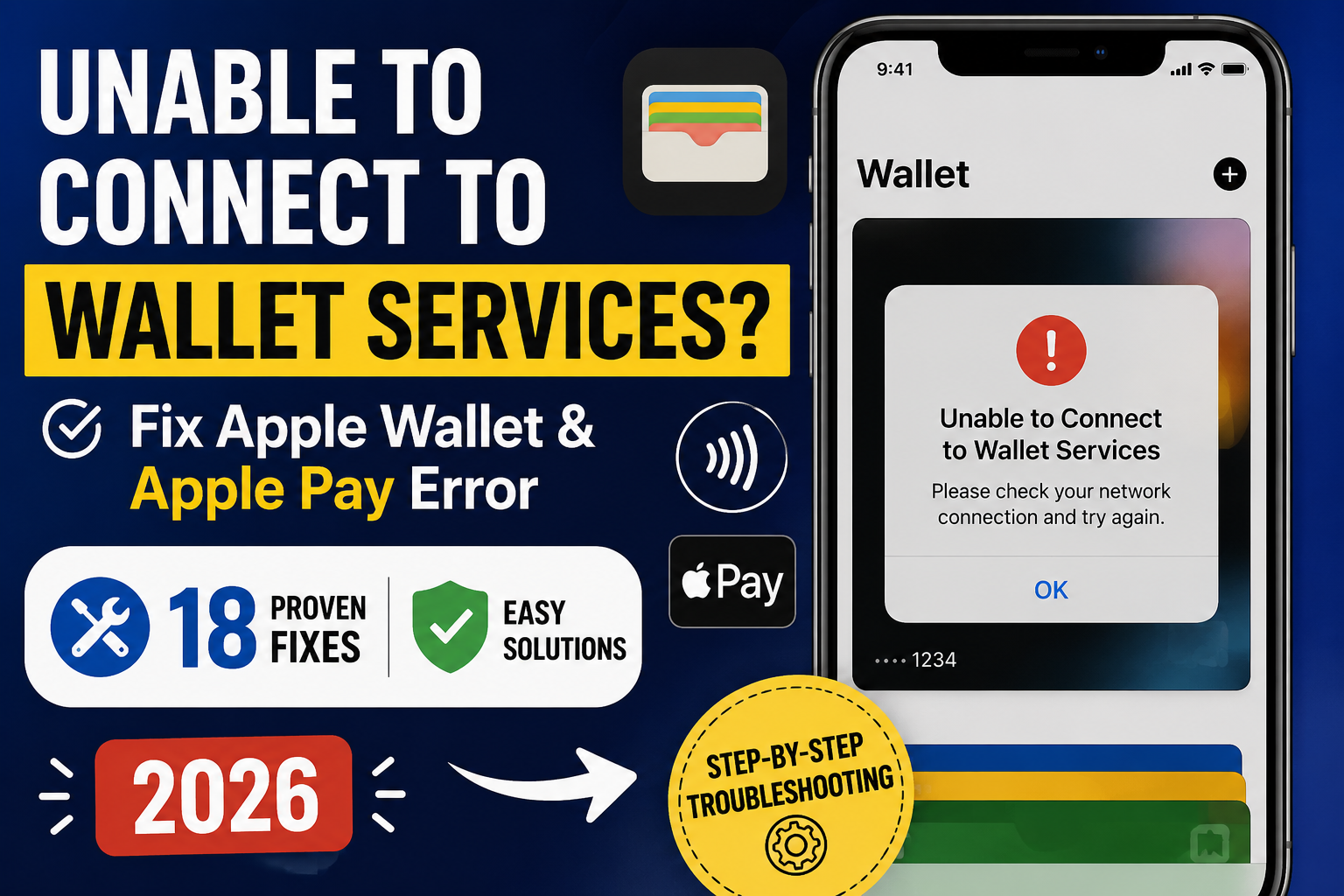
Few things are more frustrating than reaching a checkout counter, holding your iPhone or Apple Watch near the payment terminal, and suddenly seeing the message “Unable to connect to Wallet services”. Whether you’re trying to make an Apple Pay purchase, send money through Apple Cash, add a new card, or simply open Wallet, the error can interrupt your day when you least expect it.
The good news is that this message doesn’t always mean there’s something seriously wrong with your device. In many cases, it’s caused by temporary network issues, Apple server outages, incorrect settings, software bugs, or problems with your bank or payment card. unable to connect to wallet services Sometimes the issue affects only one user, while at other times thousands of Apple customers may experience the same problem simultaneously due to a broader service disruption.
Understanding why this error appears is the first step toward fixing it. Instead of randomly trying different solutions, knowing the root cause helps you apply the right fix quickly and avoid unnecessary troubleshooting.
This comprehensive guide explains everything you need to know about the ‘unable to connect to wallet services’ error. We’ll explore how Apple Wallet works, the most common reasons the error occurs, how to identify whether it’s an Apple-wide outage or a device-specific issue, and the best practices to restore Wallet functionality.
Whether you’re using an iPhone, Apple Watch, iPad, or Mac, this guide is designed to help you understand the problem and resolve it with confidence.
What Does “Unable to Connect to Wallet Services” Mean?
The message “Unable to Connect to Wallet Services” indicates that your device cannot establish the secure connection required to communicate with Apple’s Wallet infrastructure.
Apple Wallet is much more than a digital card holder. Behind every payment or card verification is a secure communication process involving multiple systems, including:
- Apple Wallet servers
- Apple Pay infrastructure
- Apple Cash services (where available)
- Your financial institution
- Payment networks
- Device security components
- Internet connectivity
If any part of this chain experiences an interruption, Wallet may display a connection error instead of completing the requested action.
Depending on the situation, you might notice issues such as:
- Apple Pay refusing to complete a purchase
- Cards failing to verify
- unable to connect to wallet services to add a debit or credit card
- Apple Cash transfers not processing
- Wallet loading indefinitely
- Error messages during setup
- Payment authorization failures
The exact wording can vary between iOS versions, but the underlying issue is usually that your device cannot complete secure communication with the required service.
Understanding How Apple Wallet Works
To understand why Wallet occasionally fails, it helps to know what happens behind the scenes whenever you make a payment.
Step 1: Device Authentication
Before any payment begins, your device verifies your identity using one of the following:
- Face ID
- Touch ID
- Device Passcode
This ensures only the authorised owner can access stored payment credentials.
Step 2: Secure Token Generation
Apple does not transmit your actual credit card number during purchases.
Instead, Wallet creates a unique encrypted payment token. This token protects your financial information and is designed for one transaction at a time.
Because of this architecture, Apple Pay is generally considered more secure than using a physical card.
Step 3: Server Communication
Once authentication succeeds, your device communicates securely with Apple’s payment infrastructure.
This communication may include:
- Device verification
- Payment authorization
- Token validation
- Security checks
- Fraud prevention analysis
If this connection fails, Wallet may display the ‘unable to connect to wallet services’ message.
Step 4: Bank Authorization
Next, Apple forwards the payment request through the payment network.
Your bank then checks:
- Card status
- Available funds
- Fraud detection rules
- Spending limits
- Transaction approval
If approved, the transaction proceeds.
Step 5: Payment Completion
Within seconds, the merchant receives confirmation, and your payment is complete.
Although this process usually feels instantaneous, multiple secure systems are working together behind the scenes.
Why Does This Error Happen?
There isn’t one universal cause. Instead, several independent issues can produce the same error message.
Temporary Apple Service Problems
Occasionally Apple’s payment infrastructure experiences temporary disruptions.
During these periods, users may encounter the following:
- Apple Pay failures
- Wallet connection errors
- Apple Cash issues
- Card verification delays
- Payment authorization failures
These interruptions are generally resolved by Apple without requiring any action from users.
Internet Connectivity Issues
Wallet requires a stable internet connection for many operations.
Common network problems include:
- Weak Wi-Fi signal
- Unstable mobile data
- Public Wi-Fi restrictions
- VPN conflicts
- DNS issues
- Router problems
Although some in-store transactions can use previously provisioned credentials, tasks like adding cards, verifying accounts, or updating Wallet information typically require reliable connectivity.
Apple ID Authentication Problems
Wallet relies on your Apple ID for several secure services.
Problems may arise if:
- Apple ID authentication expires
- Security verification fails
- iCloud synchronization encounters an error
- Account settings become temporarily unavailable
Refreshing your Apple ID session often resolves these issues.
Software Bugs
Every major iOS update introduces new features and security improvements, but software updates can occasionally introduce temporary bugs.
Examples include:
- Wallet freezing
- Payment confirmation delays
- Cards disappearing temporarily
- Connection failures
- Authentication loops
Apple typically addresses verified software issues through later updates.
Outdated iOS Version
Running an older version of iOS can sometimes create compatibility issues.
Reasons include:
- Expired security certificates
- Updated payment protocols
- Compatibility changes
- Wallet feature enhancements
Keeping your device updated reduces the likelihood of these problems.
Incorrect Date and Time
Many secure services depend on accurate system time.
If your iPhone’s clock is incorrect, encrypted connections may fail because security certificates rely on precise timestamps.
Even a small difference can occasionally interfere with secure communication.
Bank-Related Problems
Not every Wallet issue originates with Apple.
Sometimes the problem lies with:
- Bank maintenance
- Card replacement
- Fraud protection
- Expired cards
- Spending restrictions
- Temporary authorization holds
In these cases, contacting your financial institution may be necessary.
Device Security Restrictions
A wallet prioritises security over convenience.
Certain conditions can temporarily disable Wallet services, including:
- Jailbroken devices
- Security policy violations
- Device management restrictions
- Unsupported regions
- Enterprise configuration conflicts
Is It an Apple Outage or Your Device?
One of the first questions users ask is whether the issue affects everyone or only their device.
Understanding the difference can save significant troubleshooting time.
Signs of an Apple Service Outage
If Apple experiences a platform-wide issue, you may notice:
- Thousands of users reporting problems simultaneously
- Apple Pay purchases failing at multiple retailers
- Apple Cash transfers unavailable
- Wallet setup errors affecting many devices
- Similar complaints appearing across online communities and social media
During these events, restarting your iPhone repeatedly is unlikely to resolve the issue until Apple’s systems recover.
Signs the Problem Is Limited to Your Device
If the issue affects only your device, you might observe the following:
- Other Apple users making successful payments
- Your bank confirms no outage
- Your internet connection is unstable
- Wallet works on another Apple device linked to your account
- Restarting temporarily fixes the issue
In these situations, local troubleshooting is more likely to solve the problem.
Common Situations Where the Error Appears
The message can appear during many different Wallet activities.
While Adding a New Card
Many users first encounter the error while trying to add a debit or credit card.
Possible reasons include the following:
- Poor internet connection
- Bank verification delay
- Apple server communication failure
- Unsupported card
- Incorrect billing information
During Apple Pay Checkout
Sometimes the payment terminal waits, but Wallet cannot complete the authorisation.
Possible causes include:
- Merchant terminal communication issues
- Network interruption
- Temporary Apple Pay outage
- Bank authorization failure
Sending Apple Cash
Apple Cash transfers depend on multiple online services.
If any part of the payment chain experiences an issue, transfers may fail temporarily.
Updating Wallet Settings
Wallet occasionally communicates with Apple’s servers while
- Verifying identity
- Updating payment cards
- Syncing account information
- Managing passes
Any interruption during these processes may produce a connection error.
Who Is Most Likely to Experience This Issue?
Although anyone can encounter Wallet errors, certain situations increase the likelihood.
Users Installing New iOS Versions
Major software updates occasionally introduce temporary compatibility issues until subsequent updates are released.
People Switching Devices
Moving to a new iPhone often requires the following:
- Re-authenticating cards
- Verifying identity
- Re-establishing secure payment tokens
Any interruption during this setup process may generate Wallet connection errors.
Travelers
International travel can introduce additional variables, including:
- Regional payment restrictions
- Roaming connectivity
- Bank security verification
- Different payment networks
Users Changing Apple ID Settings
Changes involving:
- Password resets
- Two-factor authentication
- Apple ID recovery
- Region changes
may temporarily affect Wallet until account verification completes.
How to Quickly Determine the Cause
Before trying advanced fixes, ask yourself these questions:
| Question | What It Suggests |
|---|---|
| Is your internet connection stable? | Possible network issue |
| Are other Apple services working normally? | Helps identify broader Apple issues |
| Has your bank reported any maintenance? | May indicate banking-related delays |
| Did the error begin after updating iOS? | Could point to a software issue |
| Are other users reporting the same problem? | Suggests a platform-wide outage |
| Does Wallet work on another Apple device? | Indicates whether the problem is device-specific |
Answering these questions can narrow down the source of the issue and guide your next steps.
Why You Should Avoid Random Troubleshooting
When faced with a Wallet error, it’s tempting to try every solution you find online. However, unnecessary troubleshooting can sometimes create additional problems.
For example, repeatedly removing and re-adding payment cards, resetting network settings without understanding the cause, or signing out of your Apple ID can lead to extra verification steps or temporary inconvenience without resolving the underlying issue.
A better approach is to identify whether the problem is related to your device, internet connection, bank, or Apple’s services before making major changes. This method saves time and reduces the chance of introducing new issues.
1. Check Whether Apple Services Are Experiencing an Outage
Before changing any settings on your iPhone, determine whether the issue is affecting only you or many users.
When Apple Wallet, Apple Pay, or Apple Cash services experience disruptions, even a perfectly functioning iPhone cannot complete certain tasks.
Signs of a Possible Service Outage
Look for situations such as the following:
- Payments suddenly fail everywhere
- Card verification won’t complete
- Apple Cash transfers stop working
- Friends or coworkers report the same issue
- Online discussions show widespread complaints
If multiple people are affected simultaneously, the problem is likely outside your control.
What Should You Do?
If Apple is resolving a service interruption:
- Wait patiently
- Avoid repeatedly removing payment cards
- Don’t factory reset your device
- Check again after some time
Many platform-wide issues are resolved without requiring any action from users.
2. Verify Your Internet Connection
Wallet depends on secure communication with Apple’s servers.
A weak or unstable internet connection is among the most common causes of Wallet connection errors.
Test Your Connection
Try:
- Opening Safari
- Loading several websites
- Streaming a short video
- Downloading an app update
If everything loads slowly or fails, your connection may be the problem.
Switch Between Wi-Fi and Cellular
Sometimes one network performs better than another.
Try:
- Turn off Wi-Fi.
- Use cellular data.
- Retry Wallet.
If that doesn’t help:
- Turn Wi-Fi back on.
- Disable mobile data.
- Try again.
This simple test often identifies network-specific issues.
Restart Your Router
If you’re connected to home Wi-Fi:
- Restart your modem
- Restart your router
- Wait several minutes
- Reconnect your iPhone
Many temporary networking problems disappear after a router restart.
3. Turn Airplane Mode On and Off
Refreshing wireless connections can resolve minor communication problems.
Steps
- Open Control Center.
- Enable Aeroplane Mode.
- Wait 20–30 seconds.
- Disable Aeroplane Mode.
- Reconnect to Wi-Fi or cellular data.
This refreshes:
- Cellular connection
- Wi-Fi
- Bluetooth
- Network routing
4. Restart Your iPhone
Although simple, restarting your device clears temporary software glitches.
Restarting can refresh:
- Wallet background processes
- Apple Pay services
- Network connections
- Cached memory
- Authentication services
Many users skip this step, but it frequently resolves temporary issues.
5. Confirm Date and Time Settings
Apple uses encrypted security certificates.
If your device clock is incorrect, secure connections may fail.
Check Your Settings
Go to:
Settings → General → Date & Time
Enable:
- Set Automatically
If your date or time is incorrect, correcting it may immediately restore Wallet functionality.
6. Update iOS
Running outdated software can create compatibility issues.
Apple regularly releases updates that improve:
- Wallet stability
- Apple Pay reliability
- Security
- Bug fixes
- Network performance
Check for Updates
Navigate to:
Settings → General → Software Update
If an update is available:
- Back up your device
- Install the latest version
- Restart your iPhone
- Test Wallet again
7. Verify Apple ID
Wallet depends heavily on your Apple ID.
Authentication issues may prevent Wallet from communicating with Apple’s servers.
Check Apple ID
Open:
Settings
Verify:
- You’re signed in
- No verification requests are pending
- Two-factor authentication is functioning normally
If prompted, complete any security verification.
Sign Out and Sign Back In (Only if Necessary)
If authentication problems continue:
- Sign out of Apple ID.
- Restart your iPhone.
- Sign back in.
- Allow iCloud to sync.
Only perform this step if simpler solutions have failed.
8. Check Wallet Settings
The wallet itself may have been disabled accidentally.
Navigate to:
Settings → Wallet & Apple Pay
Verify:
- Apple Pay is enabled
- Cards appear correctly
- Default payment card is selected
If something looks unusual, review your payment configuration.
9. Verify Your Payment Card
Sometimes Wallet is functioning correctly, but the payment card is not.
Possible issues include:
- Expired card
- Replaced card
- Suspicious activity
- Bank maintenance
- Card temporarily locked
Open your banking app and verify the card status.
10. Contact Your Bank
Many Wallet errors originate from the issuing bank rather than Apple.
Banks may temporarily block:
- New devices
- Large purchases
- International transactions
- Repeated payment attempts
Contact customer support if:
- Card verification repeatedly fails
- Payments are declined
- Wallet setup cannot complete
Your bank can often identify authorisation issues immediately.
11. Remove and Re-Add Your Card
If only one card is affected, removing and adding it again may refresh its secure payment token.
Steps
- Open Wallet.
- Select the affected card.
- Remove the card.
- Restart your device.
- Add the card again.
Keep in mind that your bank may require identity verification during setup.
12. Check Region Settings
Apple Wallet features vary by country.
Incorrect regional settings may interfere with supported payment services.
Navigate to:
Settings → General → Language & Region
Verify:
- Country
- Region
- Supported Wallet services
Changing regions unnecessarily is not recommended unless your settings are genuinely incorrect.
13. Disable VPN Temporarily
VPN services occasionally interfere with secure communication.
Some VPN servers:
- Block payment verification
- Introduce latency
- Trigger security checks
- Prevent authentication
Disable your VPN temporarily and test Wallet again.
If Wallet begins working normally, the VPN may be responsible.
14. Reset Network Settings
If persistent network issues remain, resetting network settings may help.
This will erase:
- Saved Wi-Fi passwords
- VPN settings
- Cellular preferences
- Bluetooth pairings
It will not erase:
- Photos
- Apps
- Messages
- Documents
Go to:
Settings → General → Transfer or Reset iPhone → Reset → Reset Network Settings
Reconnect to Wi-Fi afterward.
15. Check Available Storage
A nearly full device can affect system performance.
Open:
Settings → General → iPhone Storage
Try to maintain several gigabytes of free space for optimal system performance.
16. Ensure Face ID or Touch ID Works Properly
Wallet relies on biometric authentication.
Test whether:
- Face ID unlocks instantly
- Touch ID recognizes your fingerprint
- Device passcode works correctly
Authentication failures may interrupt payment authorisation.
17. Restart Apple Watch (If Applicable)
If the issue occurs only on Apple Watch:
- Restart the watch.
- Restart your paired iPhone.
- Reconnect both devices.
- Retry Apple Pay.
Many watch-specific wallet issues disappear after reconnecting.
18. Check Apple Watch Wallet
Verify that your payment cards remain installed.
Open the Watch app on the iPhone.
Navigate to:
Wallet & Apple Pay
Confirm:
- Cards appear correctly
- No verification is pending
19. Re-Pair Apple Watch
If Wallet continues failing only on Apple Watch:
- Unpair the watch.
- Restart both devices.
- Pair again.
- Restore your backup.
This rebuilds the secure connection between devices.
20. Verify Merchant Terminal
Sometimes the issue isn’t your phone.
Retail payment terminals occasionally experience:
- Connectivity problems
- Software updates
- Reader malfunctions
- NFC failures
Try making a payment at another store before assuming your device is at fault.
21. Test Another Payment Card
If one card consistently fails while another works normally, the problem likely lies with the original card rather than Wallet itself.
Testing another supported card helps isolate the cause quickly.
22. Remove Recently Installed VPN or Security Apps
Certain security apps modify network traffic.
If the problem began after installing:
- VPN software
- Firewall apps
- Network filtering apps
- Enterprise security software
temporarily disable them and test Wallet again.
23. Disable Screen Time Restrictions
Screen Time can restrict certain Wallet functions.
Navigate to:
Settings → Screen Time → Content & Privacy Restrictions
Verify that Wallet-related settings are not restricted.
24. Review Corporate Device Management
If your iPhone is managed by:
- Employer
- School
- Organization
Certain wallet features may be intentionally disabled through mobile device management (MDM).
Contact your administrator if needed.
25. Force Close Wallet
Occasionally the Wallet app itself becomes temporarily unresponsive.
Close it completely.
Wait a few seconds.
Open it again.
Simple app refreshes can solve temporary glitches.
26. Restart After Major Updates
Following major iOS upgrades, background indexing continues for several hours.
Wallet may behave unpredictably until these background tasks finish.
If you’ve recently updated iOS:
- Restart once more
- Wait a few hours
- Retry later
27. Reset All Settings (Advanced)
If every other solution fails, resetting system settings may help.
This does not erase:
- Photos
- Videos
- Apps
- Documents
It does reset:
- Wi-Fi
- Display preferences
- Privacy settings
- Keyboard settings
- Network configuration
Only use this as an advanced troubleshooting step.
28. Restore iPhone (Last Resort)
A full device restore should only be considered after exhausting other options.
Before restoring:
- Back up your device
- Verify the issue isn’t caused by Apple servers
- Confirm your bank isn’t experiencing issues
Restoring is rarely necessary for wallet problems.
Troubleshooting Based on Your Situation
| Situation | Likely Cause | Recommended Action |
|---|---|---|
| Cannot add new card | Bank verification | Contact your bank |
| Apple Pay declined | Merchant or network | Try another terminal |
| Apple Cash unavailable | Apple service issue | Wait and retry later |
| The wallet won’t open | Software issue | Restart the device |
| Verification failed | Apple ID | Re-authenticate your account |
| Cards disappeared | iCloud sync | Allow synchronization to complete |
| Apple Watch payments fail | Pairing issue | Restart or re-pair the watch |
| An error appears after the update | Temporary software bug | Install the latest iOS update if available |
Mistakes to Avoid
Many users accidentally make troubleshooting more difficult.
Avoid these common mistakes:
- Removing every payment card immediately
- Resetting your iPhone without checking for outages
- Ignoring software updates
- Repeatedly attempting verification dozens of times
- Changing region settings unnecessarily
- Assuming your bank is always responsible
- Forgetting to test another network
- Skipping a simple restart
A systematic approach is usually faster and more effective.
When Should You Contact Apple Support?
If you’ve completed the steps above and still encounter the ‘unable to connect to wallet services’ error, it may be time to contact Apple Support.
Consider reaching out if:
- The error persists for several days despite stable internet and updated software.
- Multiple supported payment cards fail to work.
- The wallet cannot be opened or crashes repeatedly.
- You cannot add any cards after repeated verification attempts.
- Apple Pay fails across different merchants and networks while no widespread outage is reported.
- You suspect a hardware issue affecting NFC or Secure Element functionality.
When contacting support, be prepared to provide details such as your device model, iOS version, the exact error message, and the troubleshooting steps you’ve already tried. This can help speed up the diagnosis.
How to Prevent Wallet Connection Problems
While no digital service is completely immune to occasional issues, you can reduce the chances of encountering Wallet connection errors by following a few best practices.
Keep iOS Updated
Apple frequently releases updates that include:
- Security improvements
- Performance optimizations
- Wallet bug fixes
- Apple Pay enhancements
- Compatibility improvements
Installing updates promptly helps ensure your device supports the latest payment infrastructure and security standards.
Maintain a Stable Internet Connection
Many Wallet features require reliable internet access.
Whenever possible:
- Use trusted Wi-Fi networks.
- Ensure mobile data has a strong signal.
- Avoid unstable public hotspots for important financial tasks.
- Switch networks if one appears unreliable.
Review Your Payment Cards Regularly
Occasionally verify that your cards are still active and correctly configured.
Check for:
- Expired cards
- Replaced cards
- Updated expiration dates
- Bank-issued replacement cards
- Suspended accounts
Keeping your payment information current reduces the likelihood of unexpected verification failures.
Keep Your Apple ID Secure
Your Apple ID is central to many Wallet services.
Protect it by:
- Using a strong password
- Enabling two-factor authentication
- Keeping recovery information updated
- Reviewing trusted devices periodically
A secure Apple ID also helps protect your financial information.
Avoid Unnecessary Configuration Changes
Frequent changes to system settings can sometimes introduce complications.
For example:
- Switching regions repeatedly
- Installing multiple VPN services
- Constantly changing DNS settings
- Using experimental networking tools
Only modify these settings when necessary.
Restart Occasionally
Modern smartphones rarely require regular restarts, but restarting once in a while can refresh background services and clear temporary glitches.
What to Do During a Major Apple Pay Outage
Large-scale service disruptions can happen with any cloud-based platform.
If Wallet or Apple Pay experiences a widespread interruption:
Stay calm.
Most outages are temporary and are resolved by Apple engineers.
Avoid assuming your device is permanently damaged.
Verify the Situation
Before making major changes:
- Check whether other Apple users report similar issues.
- Determine whether payments are failing across multiple locations.
- Wait to see if the issue resolves on its own.
Avoid Repeated Payment Attempts
Repeatedly attempting the same payment may lead to:
- Multiple authorization requests
- Temporary bank holds
- Duplicate pending transactions
If a payment fails repeatedly, consider using another payment method until service is restored.
Have a Backup Payment Option
It’s always wise to carry the following:
- A physical debit card
- A physical credit card
- Some cash
- Another digital payment option
Even highly reliable payment systems can experience occasional interruptions.
Alternative Payment Options
If Apple Wallet is temporarily unavailable, consider using the following:
- Physical credit card
- Physical debit card
- Contactless bank card
- Merchant mobile app
- Cash
- Another supported digital wallet (where accepted)
Having multiple payment methods provides flexibility during unexpected service disruptions.
Apple Wallet Security: What You Should Know
Many users worry that a wallet error means their financial information has been compromised.
In most cases, this is not true.
Apple Wallet is designed with several layers of security.
Tokenization
Apple Pay does not send your actual card number during purchases.
Instead, it uses a unique encrypted payment token for each transaction.
Biometric Authentication
Transactions typically require:
- Face ID
- Touch ID
- Device passcode
This helps prevent unauthorised purchases.
Secure Element
Payment credentials are stored in a dedicated security component within the device, separate from the operating system.
This architecture helps protect sensitive payment data even if other parts of the system encounter issues.
Encrypted Communication
Communication between your device, Apple, payment networks, and financial institutions is encrypted to help safeguard payment information.
Expert Tips for Reliable Apple Wallet Performance
Consider these habits to keep Wallet working smoothly:
Keep at Least One Backup Card
Having more than one payment card in Wallet provides flexibility if one issuer experiences temporary problems.
Test Wallet Occasionally
If you rarely use Apple Pay, make a small purchase every so often to ensure your payment cards remain active and verified.
Remove Unused Cards
Keeping your wallet organised reduces confusion and makes it easier to identify the correct payment method.
Update Banking Apps
Many card issuers integrate with Wallet.
Keeping your banking apps updated can improve compatibility and simplify verification.
Monitor Account Notifications
Banks often send alerts for:
- New device registration
- Suspicious transactions
- Card verification requests
Responding promptly can prevent payment interruptions.
unable to connect to wallet services (FAQs)
1. What does “Unable to Connect to Wallet Services” mean?
It usually means your device cannot establish the secure connection required for Apple Wallet or Apple Pay to communicate with Apple’s payment infrastructure or related financial services.
2. Is Apple Pay down when I see this error?
Not necessarily.
The problem could be the following:
- A temporary Apple service disruption
- Your internet connection
- Your bank
- Your payment card
- Device settings
- Software issues
Checking whether other users are experiencing similar problems can help determine the cause.
3. Can poor internet cause this error?
Yes.
Many Wallet features require reliable internet connectivity for secure authentication and communication.
4. Will restarting my iPhone help?
Sometimes.
Restarting refreshes temporary software processes and network services that may be causing the issue.
5. Should I remove my payment cards immediately?
No.
Only remove and re-add a card after confirming simpler solutions haven’t worked.
Removing cards unnecessarily may require additional verification.
6. Can an outdated iOS version cause Wallet problems?
Yes.
Running the latest supported version of iOS improves compatibility and includes bug fixes that may resolve Wallet issues.
7. Can my bank block Apple Pay?
Yes.
Banks may temporarily block transactions due to:
- Fraud detection
- Security verification
- Card replacement
- Spending restrictions
Contact your bank if you suspect a card-related issue.
8. Does using a VPN affect Apple Wallet?
Sometimes.
Certain VPN configurations may interfere with secure communication required for payment services.
Temporarily disabling the VPN can help identify whether it’s contributing to the problem.
9. Why does Apple Watch show the same error?
If Apple Watch cannot communicate correctly with your paired iPhone or Wallet services, payments may fail.
Restarting or re-pairing the watch often resolves synchronisation issues.
10. Is my financial information at risk?
Usually not.
Most Wallet connection errors relate to communication or authentication issues rather than compromised payment information.
11. Can incorrect date and time settings cause Wallet errors?
Yes.
Accurate system time is important for secure certificate validation and encrypted communication.
12. Why can’t I add a new card?
Possible reasons include the following:
- Unsupported card
- Bank verification delays
- Incorrect billing information
- Apple service interruption
- Network problems
13. Why does Wallet work on Wi-Fi but not mobile data?
Your mobile carrier, signal quality, or network configuration may be affecting communication.
Testing another network can help isolate the issue.
14. Is resetting network settings safe?
Yes.
Resetting network settings does not erase personal data, but it removes saved Wi-Fi passwords and network preferences.
15. How long do Apple Wallet outages usually last?
There is no fixed duration.
Some disruptions last only a few minutes, while others may take longer depending on the underlying cause.
16. Can I still use physical cards if Wallet isn’t working?
Absolutely.
Wallet issues do not normally affect your physical debit or credit cards.
17. Should I factory reset my iPhone?
Not as a first step.
A factory reset should only be considered after ruling out network issues, Apple service interruptions, bank-related problems, and software settings.
18. When should I contact Apple Support?
If the problem continues after completing standard troubleshooting and no broader outage is reported, contacting Apple Support is a sensible next step.
Quick Troubleshooting Checklist
Use this checklist whenever you encounter the ‘unable to connect to wallet services’ error:
- ✓ Check your internet connection.
- ✓ Try Wi-Fi and cellular data.
- ✓ Restart your iPhone.
- ✓ Restart Apple Watch (if applicable).
- ✓ Verify your Apple ID.
- ✓ Confirm your payment card is active.
- ✓ Review wallet settings.
- ✓ Update iOS.
- ✓ Ensure date and time are correct.
- ✓ Disable VPN temporarily.
- ✓ Check for widespread Apple service issues.
- ✓ Contact your bank if card verification fails.
- ✓ Contact Apple Support if the issue persists.
Common Myths About Wallet Errors
| Myth | Reality |
|---|---|
| The error always means Apple is down. | It can also be caused by local network, device, or bank issues. |
| Restarting never helps. | A restart often resolves temporary software glitches. |
| My payment card is permanently blocked. | Temporary verification issues are far more common. |
| I should immediately reset my iPhone. | Major resets are rarely necessary for Wallet problems. |
| Wallet errors mean my account was hacked. | Most connection errors are unrelated to account compromise. |
Read More: T-Mobile Outage 2026: Latest Updates, SOS Mode Explained & Fixes
Final Thoughts
The ‘unable to connect to wallet services’ message can be frustrating, especially when you’re trying to make a payment or manage your cards. However, in most cases, the problem is temporary and can be resolved with a systematic approach.
Start by identifying whether the issue is limited to your device or part of a broader service disruption. From there, check your network connection, ensure your software and account settings are up to date, verify your payment card, and work through the troubleshooting steps outlined in this guide. Avoid making unnecessary changes, such as removing all of your cards or resetting your device before you’ve ruled out simpler explanations.
Digital payment systems rely on secure communication between your device, Apple, payment networks, and your financial institution. A temporary interruption anywhere in that chain can trigger connection errors, but it doesn’t necessarily indicate a serious problem.
By keeping your device updated, maintaining a reliable internet connection, monitoring your payment cards, and having a backup payment method available, you can minimise disruptions and continue using Apple Wallet and Apple Pay with confidence.